Less explaining. More showing what you can create.
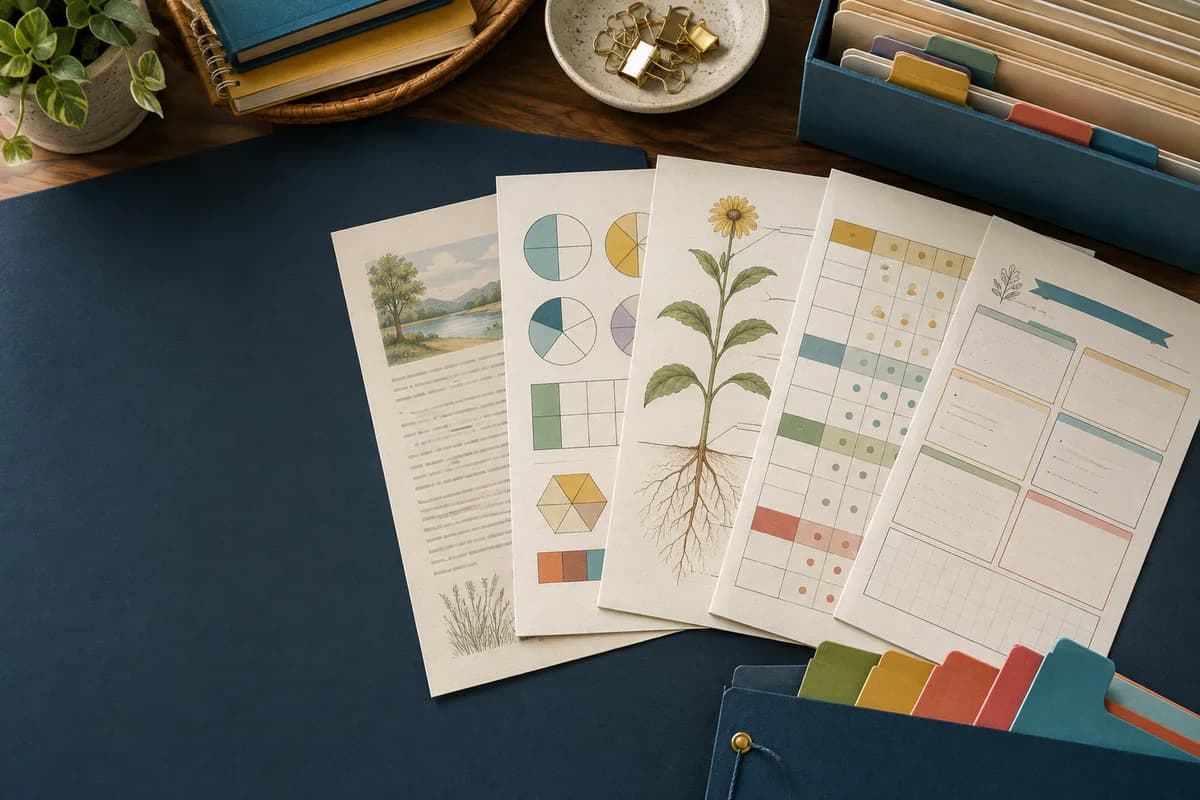
Worksheets, documents and presentations: follow the real steps in the app, then adapt them to your subject and your learners.
8 complete videos · No audio · Recorded with the English interface at a readable 2× speed, with time to inspect each result.
Your lessons. Your way of teaching.
2 walkthroughs
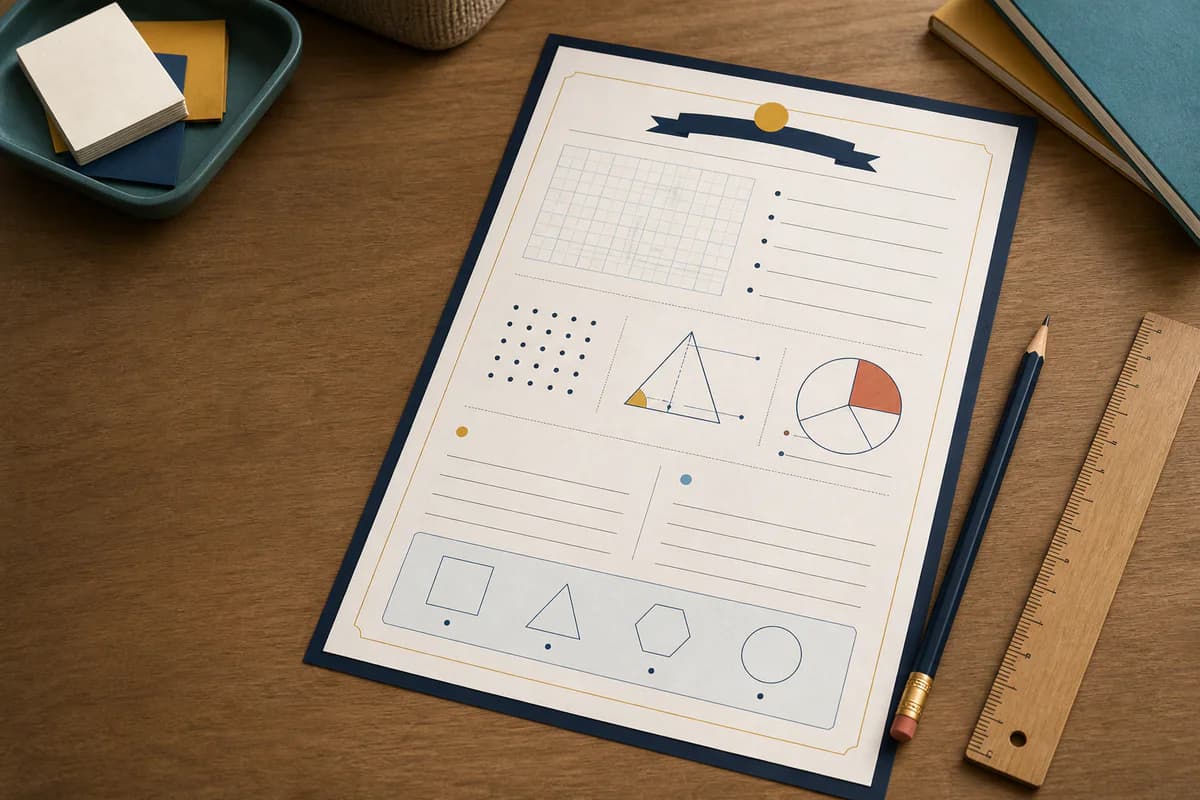
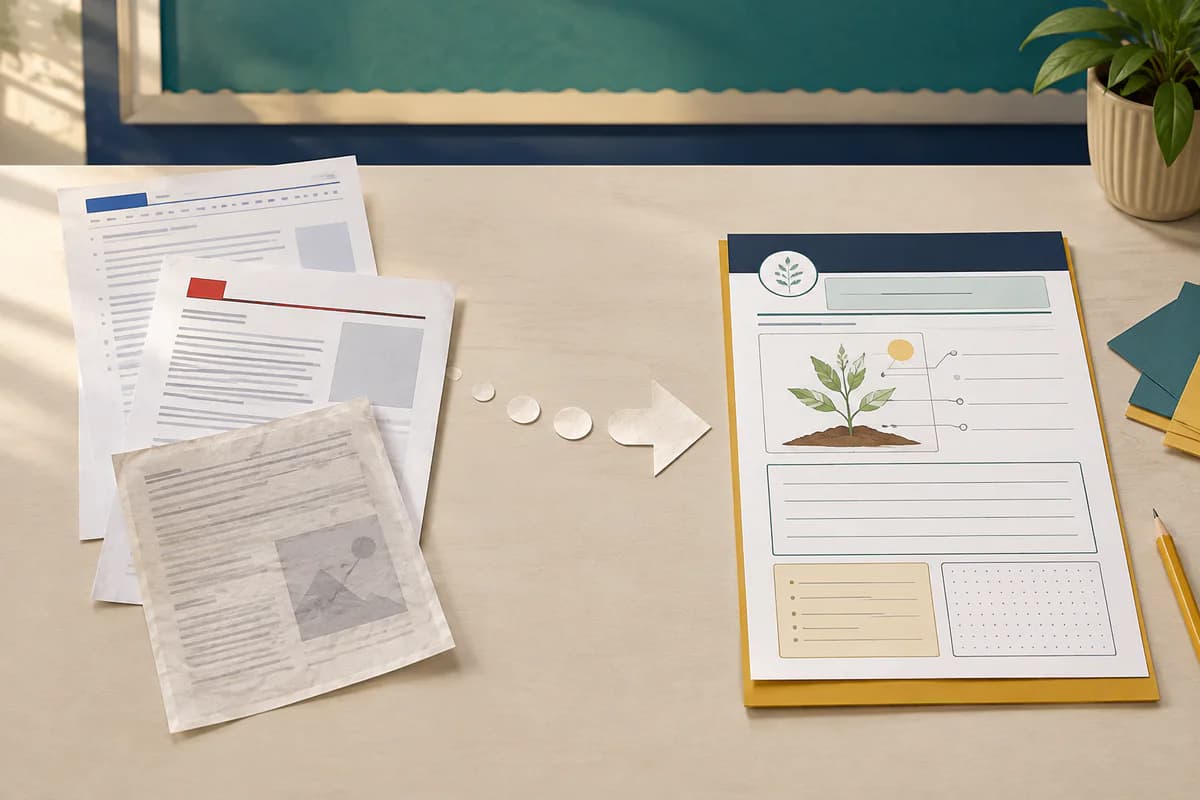
Turn a teaching idea into a classroom document
Video walkthrough — 0:58
Watch a first project take shape. Describe the subject, age range and learning objective, then review the generated document before using it with your class.
Start a project and describe your lesson.
Specify the level, language and activities you need.
Keep the good parts. Change what your class needs.
Video walkthrough — 0:39
A first draft is a starting point. Select a section, ask for a clearer instruction or adjust the text yourself without starting the whole document again.
Open the document in the editor.
Select the passage or element you want to change.
Request a focused edit and review the updated page.
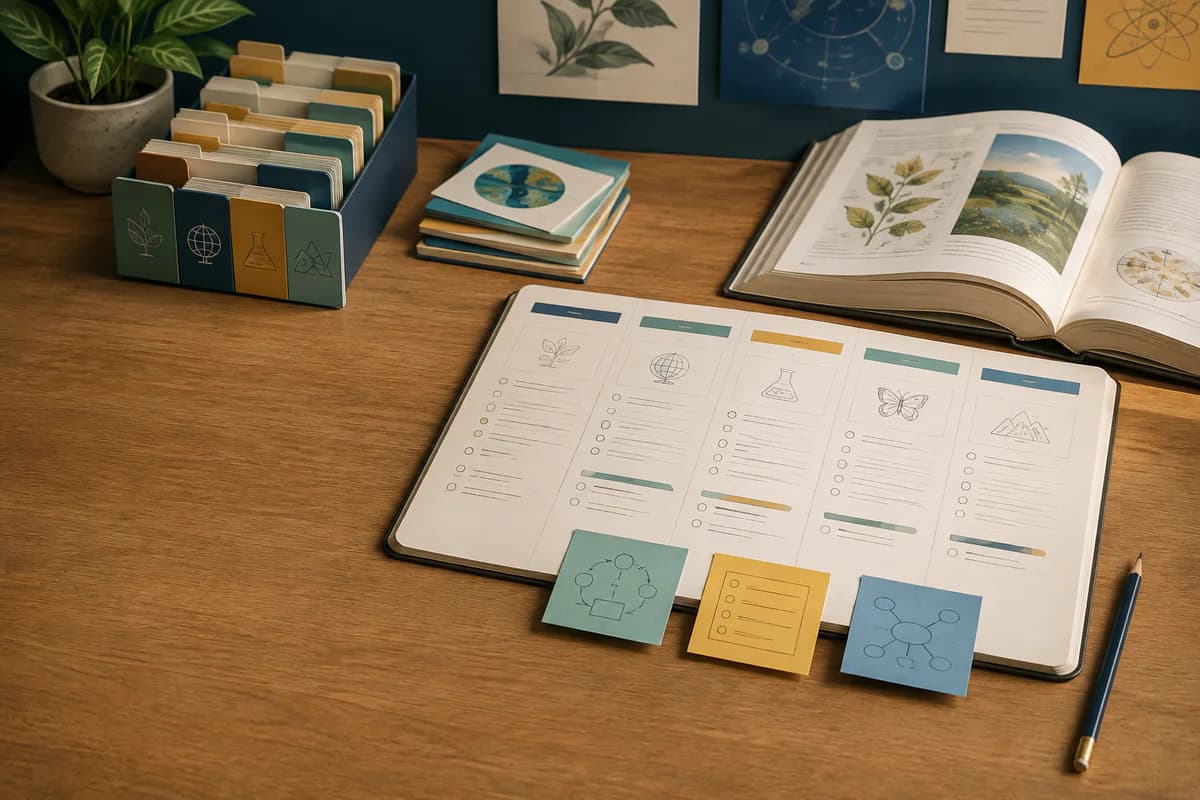
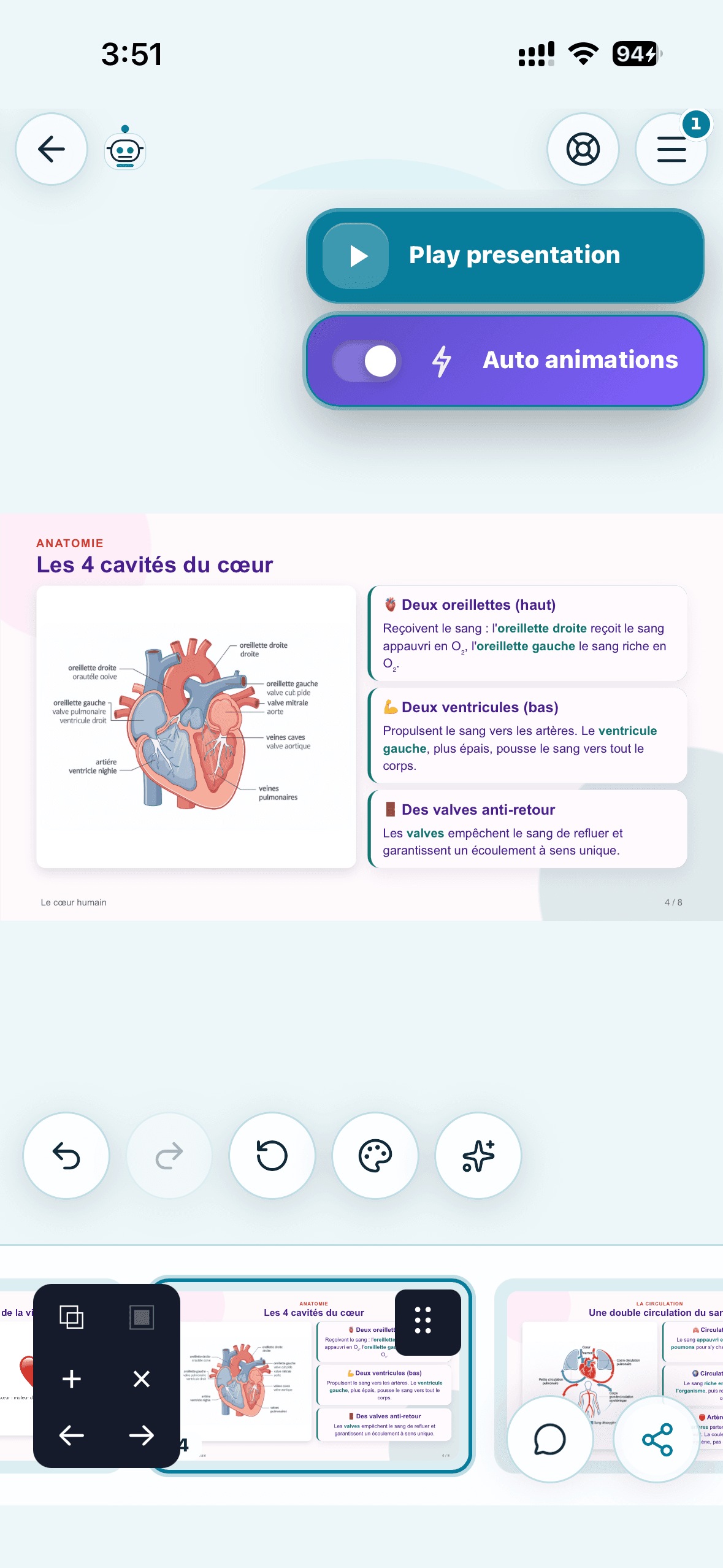
See a classroom presentation generated from a topic. Build an introduction, explanations and recap slides, then check the content and sequence before presenting.
Choose presentation mode.
Describe the topic, audience and lesson objective.
Watch a presentation being edited. Adjust a title, explanation or visual arrangement to make the lesson easier to follow, while keeping the rest of the deck.
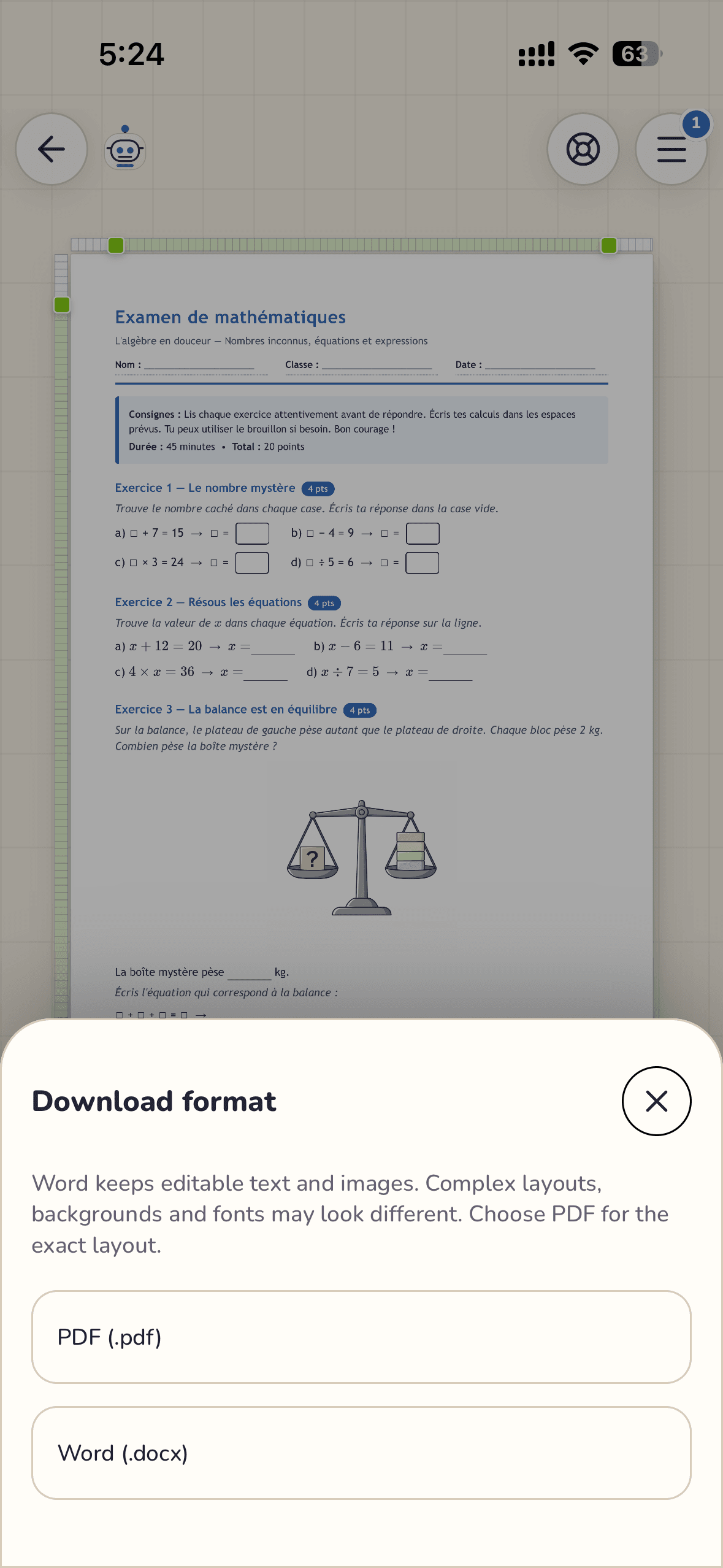
Watch the same document open as PDF and Word. PDF keeps the print layout; editable DOCX can reflow in Word or LibreOffice. Check the exported file before distributing it.
Save your latest document edits.
Choose PDF or Word from Download.
Open the file and check text, images and page breaks.
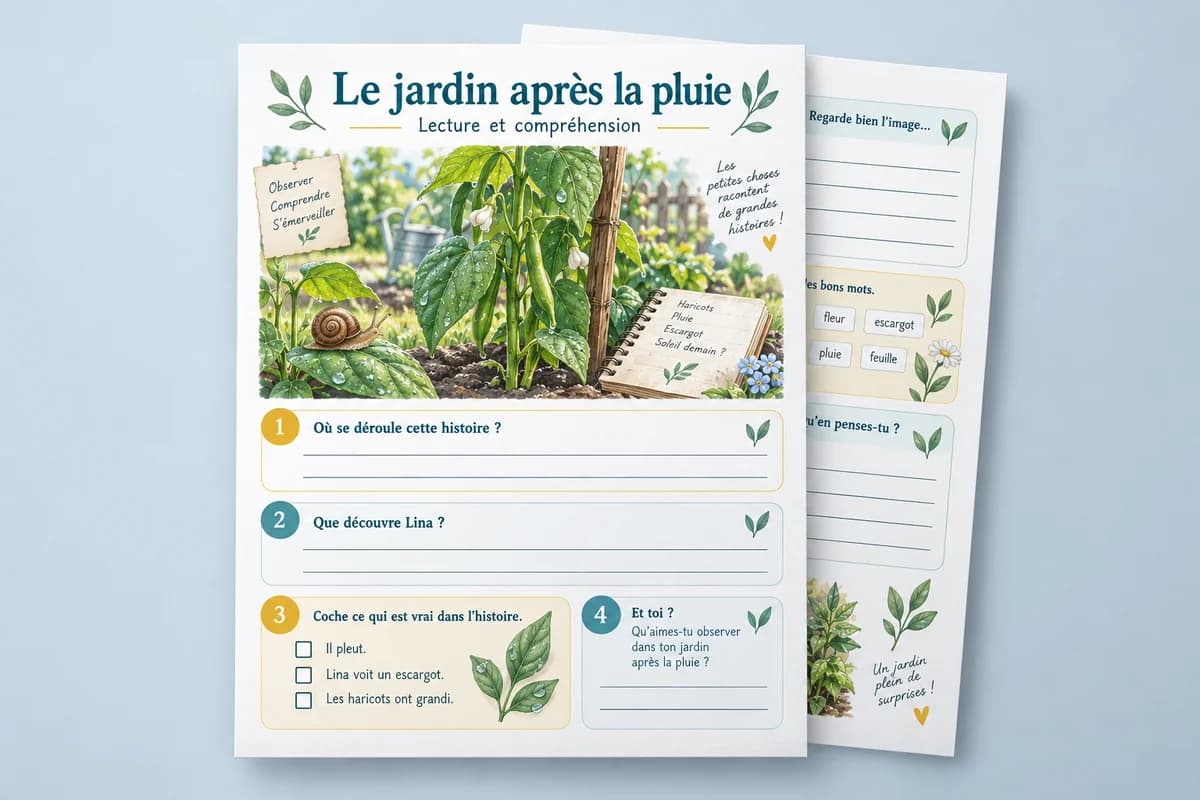
Start with a passage like this original story. Request comprehension questions, a supported version or a short presentation. Keep the source and check the answers before use.
Create, refine and take your documents anywhere. Install the Android app from Google Play, or request an invitation to test the iPhone app with TestFlight.
Android
Scan to open Google Play
iPhone and iPad
No payment. Access by invitation, subject to availability. Privacy
WordPilot mobile preview
Before you begin
Does it follow my curriculum?
Specify the country, grade or age range, subject, learning objective and official reference. Without that reference, examples remain adaptable but do not claim official alignment.
Which files can I upload?
You can add Word (.docx) files, PDFs and images. WordPilot can read their content and use it as source material for a new teaching resource.
Can WordPilot keep images from my source file?
Yes. Ask it to reuse illustrations, logos or photos from the uploaded file. WordPilot keeps readable original images instead of generating replacements unless you request new visuals.
Can I edit the document after it is created?
Yes. Edit text and layout directly, or ask the agent to change an instruction, reading level, section, illustration or document style.
Are PDF and Word downloads identical?
PDF is best for fixed page layout and printing. Word remains editable, but pagination and some visual effects may vary between Microsoft Word and LibreOffice.
Can I make a classroom presentation?
Yes. Create slides from a topic or your source files, then edit them and share the presentation by link. Presentations remain separate from printable A4 documents.
Can I create French, Arabic or bilingual materials?
Yes. Request French, right-to-left Arabic or bilingual content. Always review the wording and check the fonts before distributing the finished material.
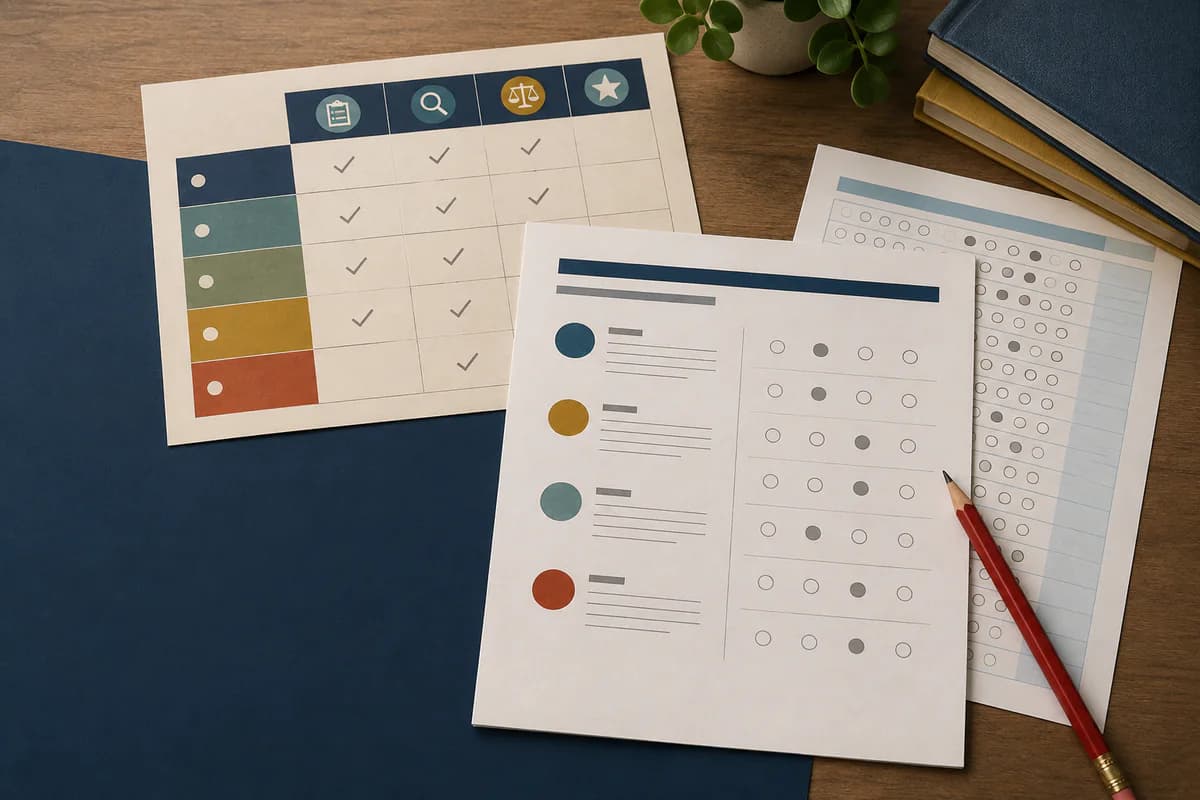
Can it create an answer key or rubric?
Yes. Request a separate answer key, explanations, scoring guide or rubric with criteria and achievement levels. Review answers and calculations before classroom use.
What if my Word file has a complex layout?
Common text, tables and images can be reused. Embedded objects, SmartArt, floating shapes or unusual layouts may be simplified or identified as unsupported.
How many projects, files and downloads are included?
Allowances depend on the plan. Visit Pricing to compare active projects, files per project, AI wallet credit and combined PDF or Word downloads.